How to Connect Wireless Keyboard: A Step-by-Step Guide for All Devices
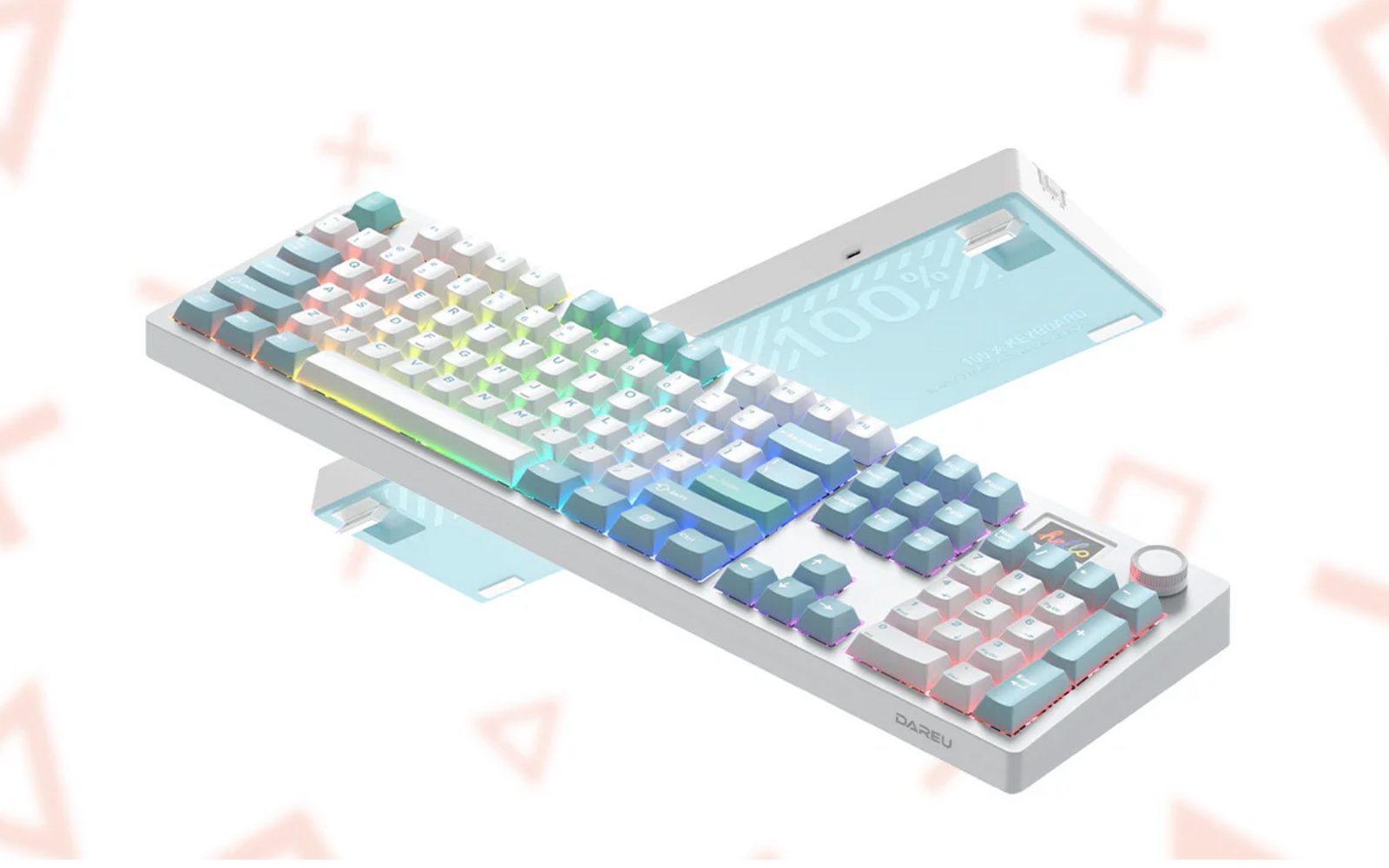
If you’ve recently purchased a wireless keyboard, you're probably eager to enjoy the freedom and flexibility it brings. No more tangled wires or limitations on where you can type. But before you dive into work or play, there's one essential step to take: learning how to connect wireless keyboard to your device.
Whether you're using a PC, Mac, smartphone, or tablet, this guide will walk you through connecting your keyboard — whether it's Bluetooth-enabled or comes with a USB receiver (dongle). Let’s get started.
Understanding the Two Types of Wireless Keyboards
There are two primary types of wireless keyboards:
Bluetooth Wireless Keyboards
These keyboards connect directly to your device's built-in Bluetooth. They’re ideal for tablets, smartphones, laptops, and even smart TVs that have Bluetooth functionality.
Pros:
- No need for USB ports
- Great for mobile devices
- Cleaner, more portable setup
Cons:
- Requires Bluetooth support on the device
- Pairing can be a bit tricky for beginners
USB Wireless Keyboards (RF or 2.4GHz)
These keyboards use a small USB dongle (receiver) that plugs into a port and connects to the wireless keyboard via radio frequency (RF).
Pros:
- Plug-and-play simplicity
- Usually has a longer range and stable connection
- No Bluetooth required
Cons:
- Occupies one USB port
- Not ideal for mobile or USB-C-only devices without adapters
How to Connect Wireless Keyboard Using a USB Dongle
If your wireless keyboard comes with a USB receiver, follow these simple steps:
For Windows and macOS:
- Plug in the USB Receiver: Insert it into an available USB-A port on your device.
- Turn On the Keyboard: Look for a power switch, usually on the bottom or side.
- Automatic Driver Installation: The system should detect and install drivers automatically. Wait a few seconds.
- Start Typing: Your keyboard should now be active and ready for use.
Pro Tip: If the wireless keyboard doesn’t respond, try using a different USB port or restarting your device. Low battery power is a common culprit — check or replace the batteries if needed.
How to Connect a Bluetooth Wireless Keyboard
Bluetooth keyboards are popular for their portability and compatibility with a wide range of devices. Here’s how to set them up on different platforms.
Windows 10/11:
- Open Bluetooth Settings: Click on Start > Settings > Devices > Bluetooth & other devices.
- Turn Bluetooth On: Make sure it’s toggled on.
- Put Keyboard in Pairing Mode: This usually involves holding a pairing button until a light starts blinking.
- Click "Add Bluetooth Device": Select your keyboard from the list that appears.
- Enter Pairing Code (if prompted): Type the code using the keyboard and press Enter.
macOS (MacBook/iMac):
- Open System Settings > Bluetooth.
- Ensure Bluetooth is Enabled.
- Power On & Pair Keyboard.
- Click Your Keyboard Name in the device list and pair it.
- Follow Prompts to Type Pairing Code, if required.
How to Connect Wireless Keyboard to Android Devices
Most modern Android smartphones and tablets support Bluetooth keyboards.
Steps:
- Enable Bluetooth: Go to Settings > Connected Devices > Bluetooth.
- Turn On Keyboard & Enter Pairing Mode.
- Tap “Pair New Device”: Your keyboard should show up in the list.
- Select It and Confirm: If required, type a pairing code using the keyboard.
Note: For USB dongle keyboards, you’ll need an OTG (On-The-Go) adapter to connect the receiver to your Android device.
How to Connect Wireless Keyboard to iPad or iPhone
Apple devices work seamlessly with Bluetooth peripherals.
Steps:
- Go to Settings > Bluetooth and toggle it on.
- Put Keyboard into Pairing Mode.
- Wait for It to Appear Under “Other Devices”.
- Tap on Keyboard Name and confirm pairing by entering a code (if required).
Once connected, you can use it across apps like Notes, Safari, or Mail, just like a laptop keyboard.
Troubleshooting Wireless Keyboard Issues
If your wireless keyboard won’t connect or stops working:
- Replace Batteries: A weak battery is the most common issue.
- Restart Devices: A simple reboot can often resolve pairing issues.
- Unpair & Reconnect: Remove the device from Bluetooth settings and try again.
- Update Drivers: For PC users, make sure your Bluetooth or USB drivers are up to date.
- Avoid Interference: Keep devices like microwaves or routers away from your keyboard.
If you're still having trouble, consult the keyboard’s user manual or the manufacturer’s website for model-specific support.
Tips for Using a Wireless Keyboard Effectively
- Keep it Clean: Wireless keyboards can collect dust; clean them regularly.
- Turn Off When Not in Use: Saves battery life.
- Use a Keyboard Tray or Wrist Rest: Improves ergonomics and reduces fatigue.
- Connect to Multiple Devices: Some advanced keyboards support multi-device switching for tablets, phones, and desktops.
Conclusion: Master the Wireless Setup Game
Now that you’ve learned how to connect a wireless keyboard, you’re ready to enjoy its convenience across your devices. Whether you’re using a Bluetooth keyboard on your iPad or a wireless USB keyboard on your Windows PC, the process is simple and rewarding.
Wireless keyboards offer flexibility, a cleaner workspace, and the ability to type comfortably from a distance — perfect for productivity, gaming, or just browsing from your couch. Invest a few minutes in setup, and you’ll be typing away with ease.